

The test run view
A test run opens with its recording at the centre of the page. Beneath it, a timeline lines up everything that happened during the run, and a side panel alongside holds the detail. Everything is tied to the video: pick a step, a log line, a request or an issue and the recording jumps to that moment.
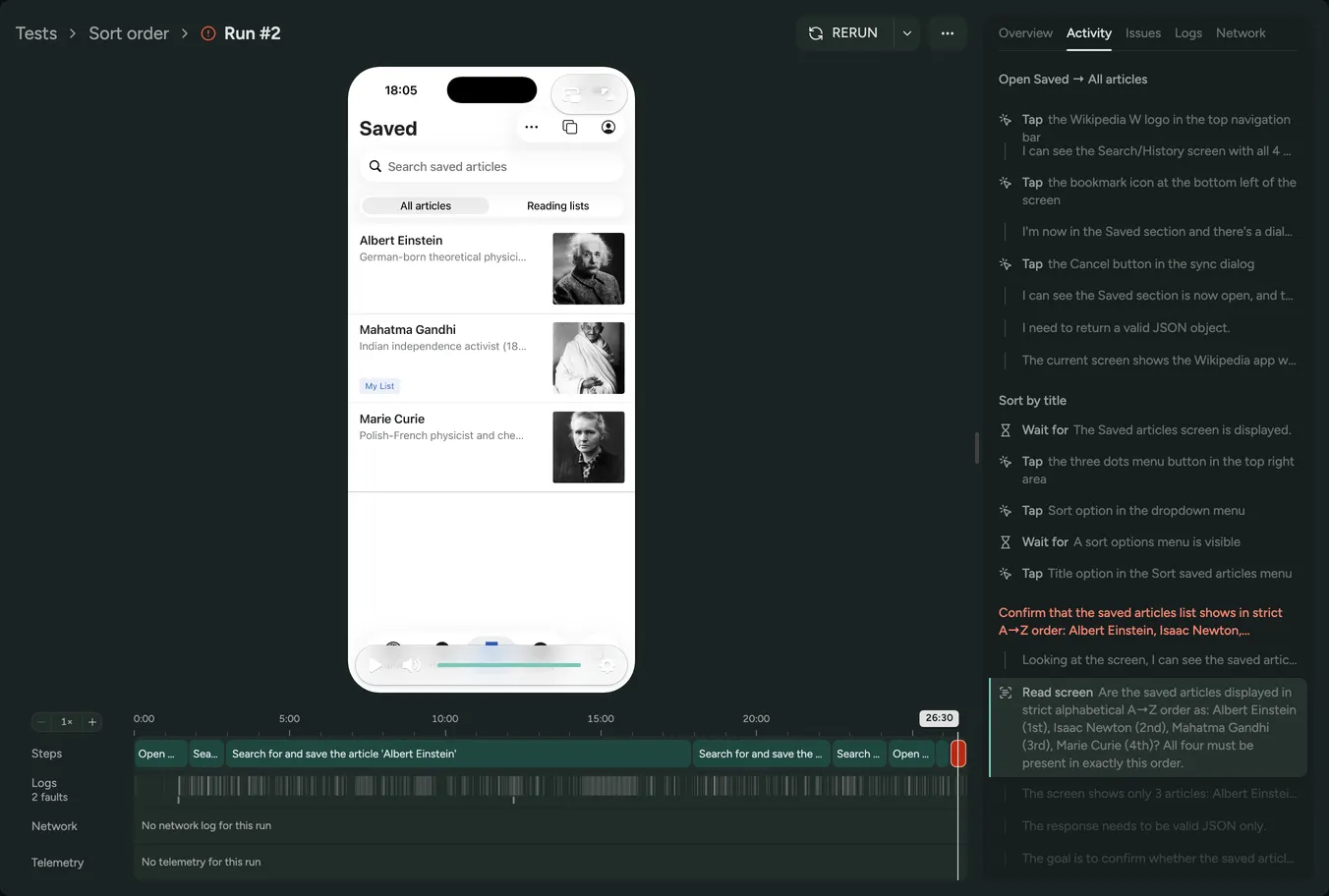
The timeline
Section titled “The timeline”The timeline under the video has a lane for each kind of evidence:
- Steps: Each action the agent took, so you can see where it spent its time.
- Logs: When the app wrote to the system log, with faults marked.
- Network: When the app made requests, with failed requests marked.
- Telemetry: The app’s memory, CPU and frame rate over the course of the run.
Click anywhere on the timeline to jump there. Use the zoom controls, or +,
- and 0, to look closely at a busy stretch.
The side panel
Section titled “The side panel”- Overview: The test, the outcome and a summary of the run. For a failure, it explains what went wrong, with a link that jumps to the moment it happened. This is also where you tell us whether the result was right.
- Activity: The agent’s steps and its reasoning for each one.
- Issues: Bugs and rough edges the agent noticed along the way.
- Logs and Network: The full system log and network log, following along with the video as it plays.
Drag the edge of the side panel to make it wider or narrower.
Watching the recording
Section titled “Watching the recording”Fast mode, on by default, plays the gaps between the agent’s actions quickly so you spend your time on what the agent did. Turn it off from the video controls to watch at normal speed. The same controls show or hide the agent’s taps and the boxes around the elements it focused on.
The page address keeps up with the video, so copying it gives a link to that exact moment in the run.
Keyboard shortcuts:
Spaceto play or pause the videojandk, or the left and right arrow keys, to move between the agent’s actions
Switching back to the classic view
Section titled “Switching back to the classic view”The classic view is still there if you prefer it. Open the menu at the top right of a test run and choose Back to classic view. Semaloop remembers the choice in your browser. To return to the new view, choose Try the new view at the top of any test run.