

Slack
Semaloop posts a summary to a Slack channel of your choice whenever a full test suite run finishes on a new build, and can send the result of a single test to you as a direct message. To get started, go to Settings → Slack integration.

Connecting Slack
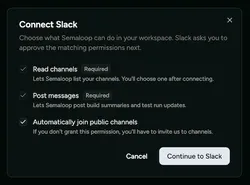
Section titled “Connecting Slack”Click Connect Slack and choose what Semaloop can do in your workspace. Slack then asks you to approve the permissions for what you chose. Once you’re back in Semaloop, choose the channel which will receive the test results. A summary notification then appears there whenever a full test suite run completes.
Notifications are sent for automatic runs only. Manually triggered tests do not send Slack updates.
Permissions
Section titled “Permissions”Semaloop only asks Slack for the permissions behind the features you choose.
| Feature | Slack permissions | Needed? |
|---|---|---|
| Read channels | channels:read, groups:read | Always |
| Post messages | chat:write | Always |
| Automatically join public channels | channels:join | Optional |
| Preview Semaloop links | links:read, links:write | Optional |
channels:readandgroups:readlet Semaloop list the public and private channels it can post to, so you can pick one.chat:writelets Semaloop post summaries and direct messages.channels:joinlets Semaloop add itself to the public channel you choose.links:readandlinks:writelet Slack show the test, build and date under a shared test run link. This isn’t available to every organisation yet.
Without automatic joining
Section titled “Without automatic joining”If you’d rather not grant channels:join, type /invite @Semaloop in the
channel before choosing it. Private channels always need an invite, whatever
you granted: they only appear in the channel list once Semaloop is a member.
Changing permissions
Section titled “Changing permissions”To add a permission later, click Enable next to it under Permissions.
Permissions belong to your Slack workspace, so every Semaloop app connected to it shares them: enabling one for an app enables it for the others too. Slack doesn’t let an app give a permission back, so to remove one, remove Semaloop from your workspace’s apps in Slack, then connect Slack again for each app in Semaloop.
Disconnecting one app leaves any others connected to the same workspace posting as before.
When notifications stop
Section titled “When notifications stop”If Slack rejects a summary in a way that needs someone to act, the Slack integration shows Needs attention with the reason and how to fix it. For example, Semaloop may have been removed from the channel, the channel may have been deleted, or the Semaloop app may have been removed from your workspace. Once you’ve fixed it, click Send test notification to check.
Direct messages for a test run
Section titled “Direct messages for a test run”With our Slack integration you can also receive individual notifications as a direct message from Semaloop for a given test run. On a given test, you can subscribe and be notified of the outcome. This is especially helpful when working on a new test spec which might require a little bit of iteration.