

Test organisation
There are two ways to group tests. Folders give every test one place to live. Tags group tests that cut across folders, and choose which tests run.
Folders
Section titled “Folders”Use a folder when each test belongs in exactly one place, such as a feature area or a part of the app. A test sits in one folder at most.
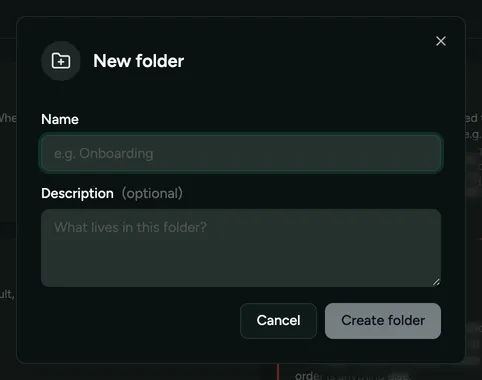
To create one, go to Tests → New folder.
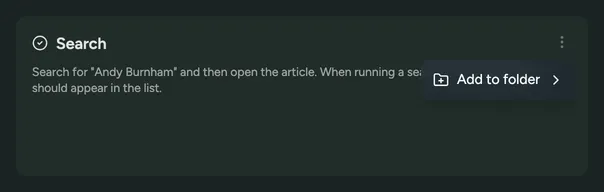
Once created, move a test to a folder by pressing … → Add to folder, then select the folder.
Use a tag when a group cuts across your folders, or when you want to run that
group on its own. For example, you might keep folders by feature and tag the
critical flows in each one smoke, so that only those run on every TestFlight
build. A test can carry several tags, so a sign-in test can be both smoke and
regression while staying in its Account folder.
Add tags when you create a test, or later from Edit on the test page. Type
a tag and press Enter, or pick one already used in the app. Tags are
lowercased, so Smoke and smoke are the same tag. Changing a test’s tags
never starts a run.
To see one group, pick a tag above the list on the Tests page. Selecting a tag on a test also takes you there.
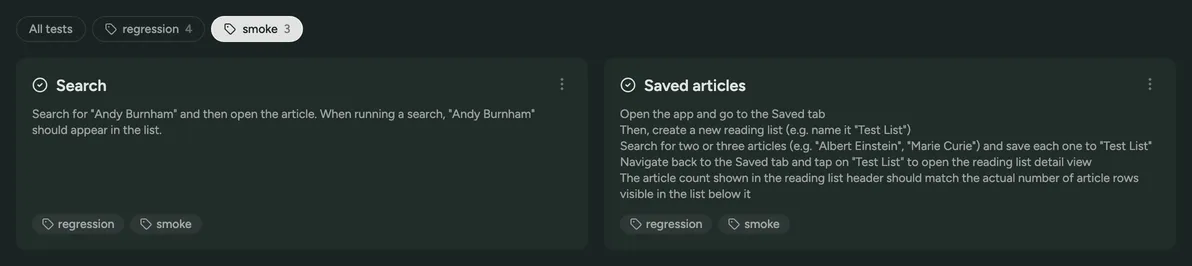
Tags decide which tests run automatically on each channel, and let you run one group by hand.