

Secrets and credentials
In order to run tests in a repeatable way, it’s important to manage the user credentials provided to our agents.
As mentioned in agent capabilities, each of our devices has a number of credentials always available to our agent. However, sometimes you may wish to provide your own credentials. For example, you have some premium user accounts that behave differently to your free user accounts. We currently support three types of secrets.
User accounts
Section titled “User accounts”User accounts are used by an agent to authenticate into your application. To set this up, go to Secrets → Add secret. You can then add a number of values for a given secret.
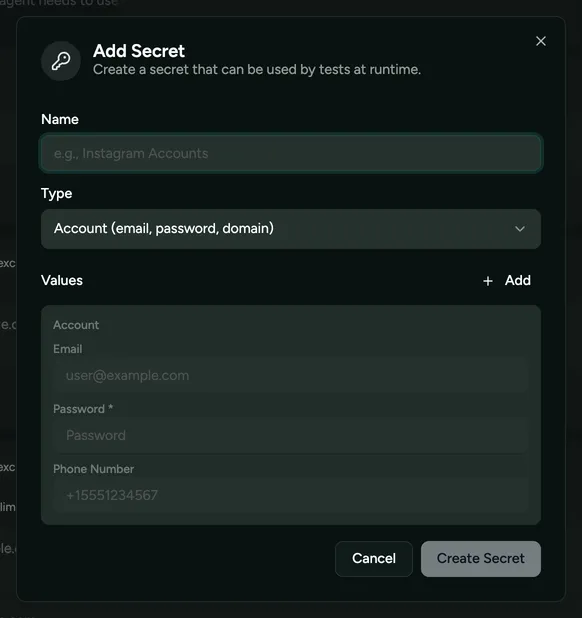
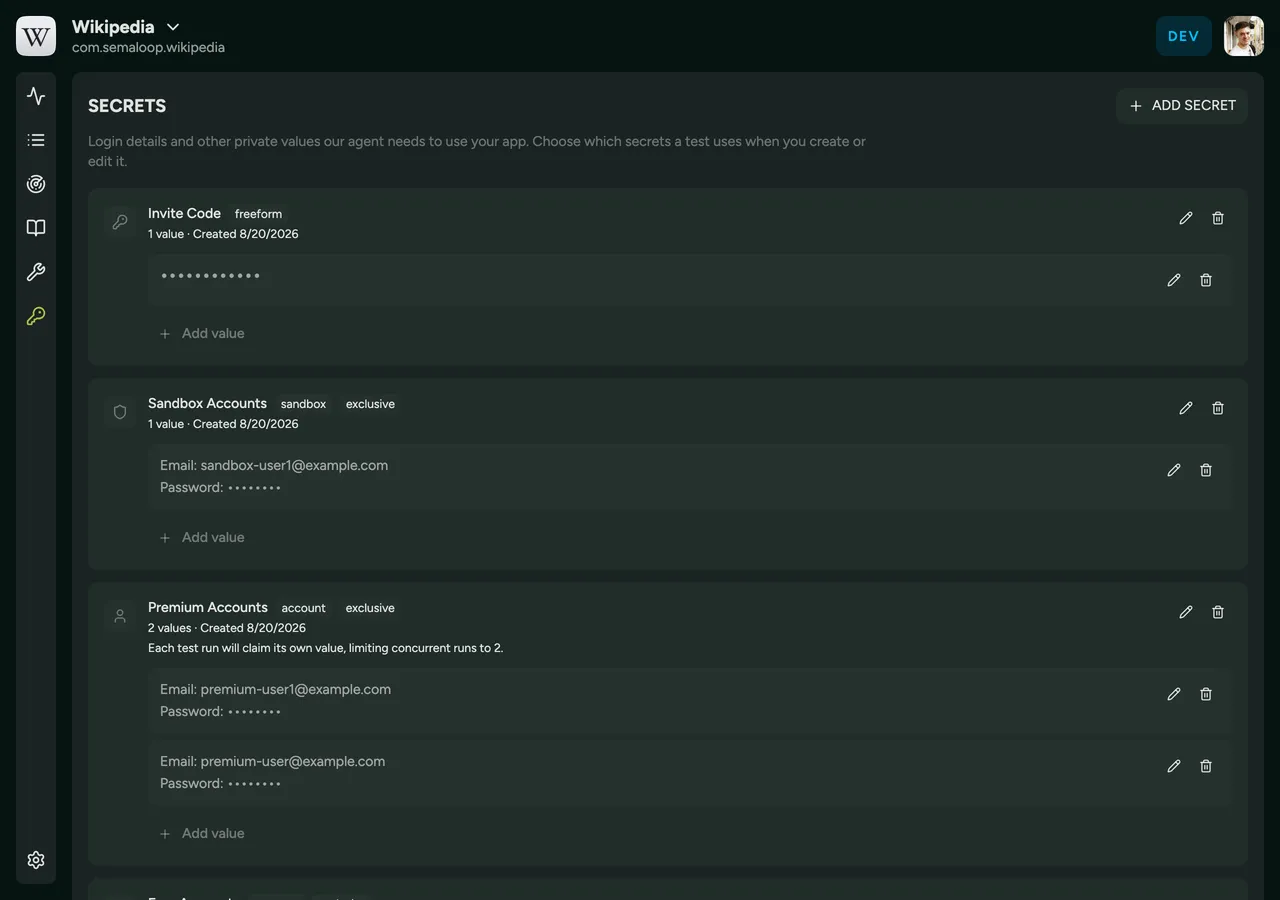
As an example, you could have a secret for free accounts and another secret for premium accounts.
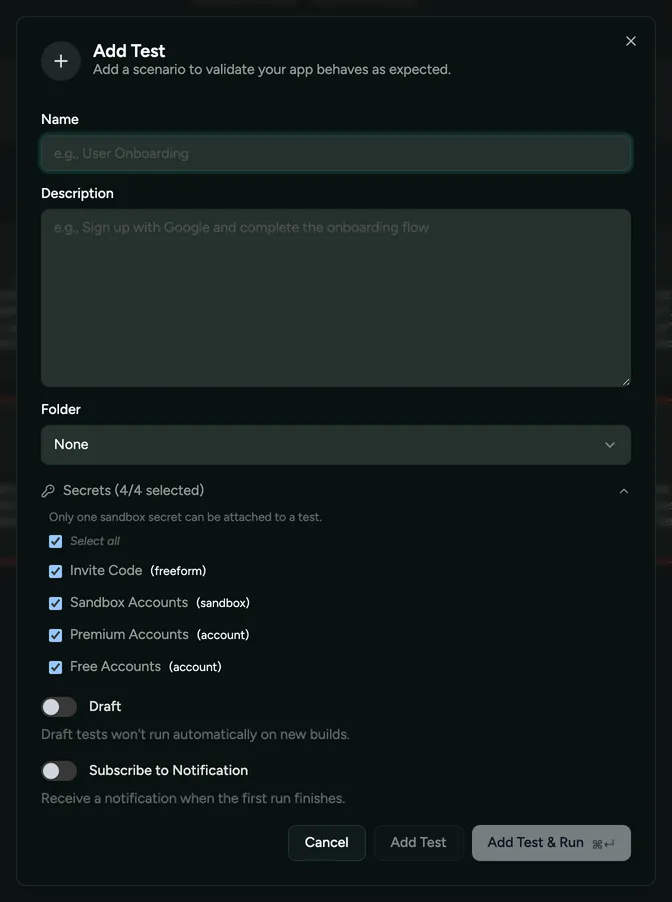
The final step is to then assign secrets to an agent for a given test. Go to Tests → Add test, and ensure that you select the relevant secret for this test.
Sandbox accounts
Section titled “Sandbox accounts”Sandbox accounts let Semaloop test in-app purchases and subscriptions.
These accounts are useful as cancelling a subscription in your backend doesn’t always reset it on the device, so subscriptions can linger until they naturally expire, making paywall and subscription flows impossible to test repeatedly.
First, you’ll need to set up some sandbox accounts. We currently support Apple sandbox accounts. See Apple’s sandbox account documentation.
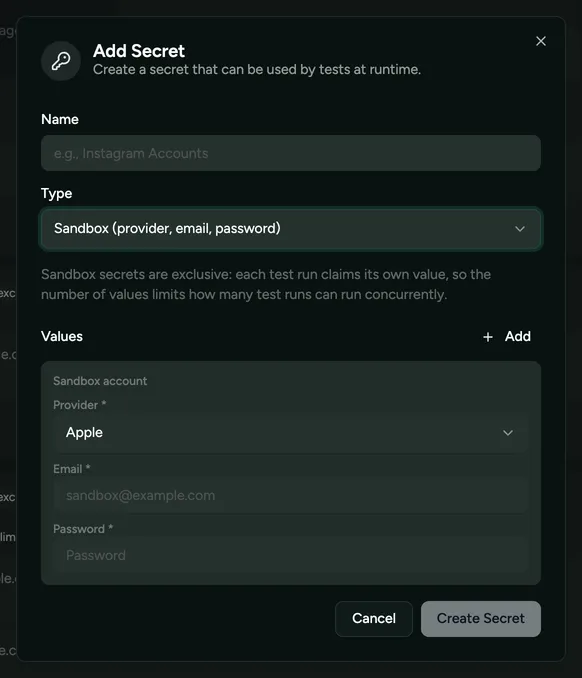
Once created, go to Secrets → Add secret, select Sandbox account as the type, and fill out the account details.
Then, when creating or editing an existing test, ensure you select the relevant secret to provide to the agent (e.g. “Sandbox accounts”), in the same way as for user accounts.
Sandbox accounts are exclusive, so each concurrent run claims its own account and tests never interfere with each other. This means that if you only have one sandbox account, then you’ll only be able to run a single test at a time if you have multiple tests that require the secret. Add more credentials to the secret to avoid this situation.
Freeform strings
Section titled “Freeform strings”This is a catch-all way to store important strings that an agent might need to use. For example, you might have an invite code that’s used across many tests. Rather than write the invite code into the test spec, you can just provide that as a freeform string secret to the agent.
Go to Secrets → Add secret and choose Freeform string as the type.
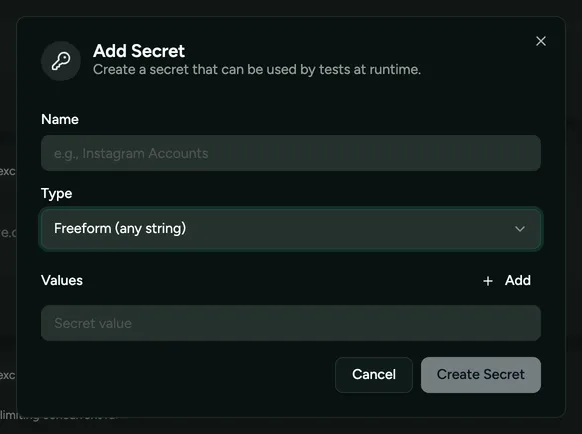
Then, provide this secret to one of our agents by selecting it on the relevant test, again as for user accounts.